Running Bonsai 2 27B Locally on Windows with an RTX 5070 Ti and Hermes Desktop
Running a GGUF usually means downloading a model, pointing llama.cpp at it, and waiting for the first token. Bonsai 2 27B was not that kind of setup.
The model uses PrismML’s custom ternary formats and a rotated weight basis. Stock llama.cpp is not enough. Hermes Agent also expects at least a 64K context window, and its High reasoning preset sends a value that Bonsai’s chat template does not accept.
Think of it as a USB-C cable that looks like every other USB-C cable until you try to charge a laptop with a phone charger. The connector fits. The protocol does not. This is the Windows configuration I ended up with after testing the complete path on the same RTX 5070 Ti I use for WSL AI work.
| Piece | What I ran |
|---|---|
| Model | Official Bonsai 2 27B, PQ2_0 |
| GPU | NVIDIA GeForce RTX 5070 Ti, 16 GB VRAM |
| CPU | AMD Ryzen 7 7800X3D |
| RAM | 64 GB |
| OS | Windows 11 Pro |
| Runtime | PrismML llama.cpp fork, CUDA build |
| Context | 65,536 tokens |
| KV cache | Q4_0 |
| Slots | 1 |
| Vision | Q8_0 multimodal projector |
| Client | Hermes Desktop via OpenAI-compatible API |
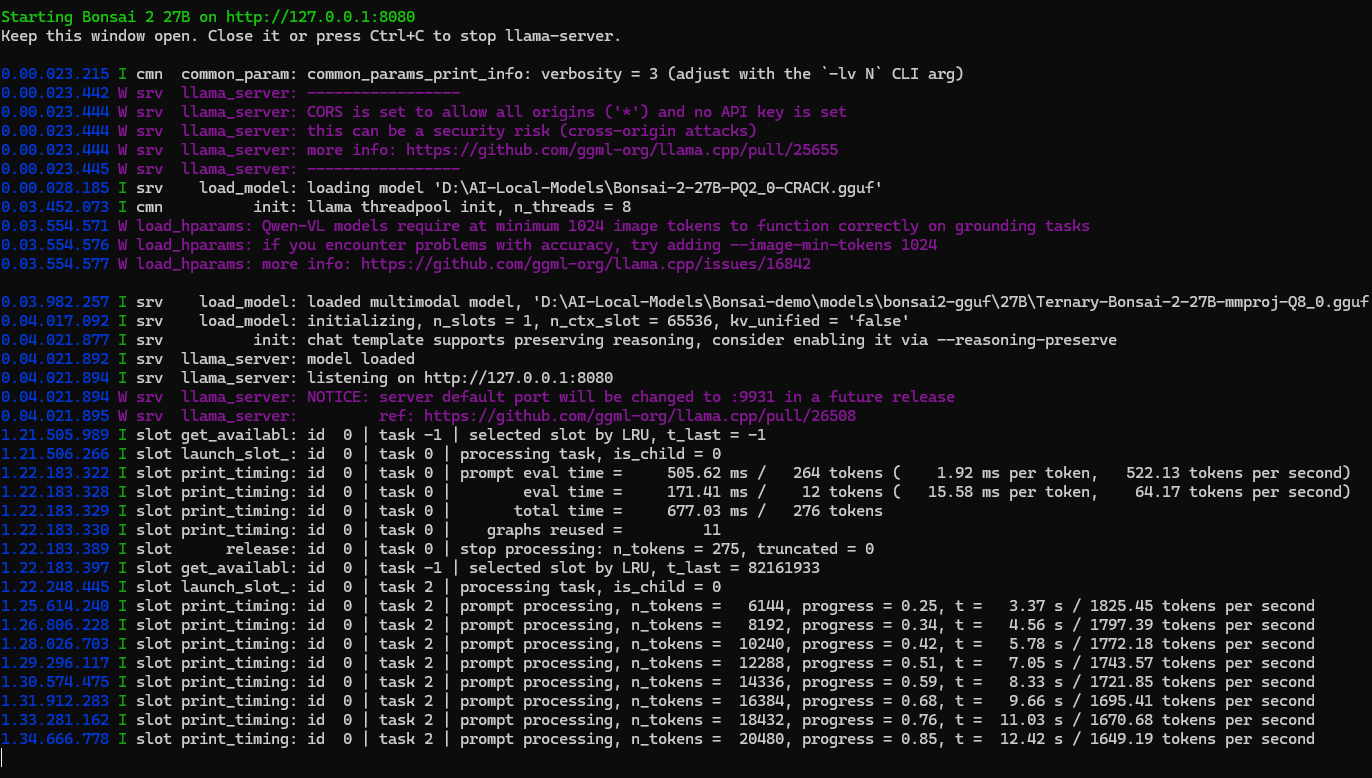
This is the llama.cpp console from that Windows box. After load, the server is on 127.0.0.1:8080 with n_slots = 1 and n_ctx_slot = 65536. A short completion printed about 522 prompt tokens/second and 64 generated tokens/second. A longer prompt then filled at roughly 1.6–1.8k prompt tokens/second past 20K tokens. Point measurements, not a formal benchmark — but they show the 27B weights are GPU-resident and usable interactively.
The same local-vs-hosted split shows up in how I treat models in production: keep the adapter stable, swap the weights only when the runtime contract holds. That is the point of model-agnostic AI architecture — here the adapter is llama-server’s /v1 API, not Azure OpenAI.
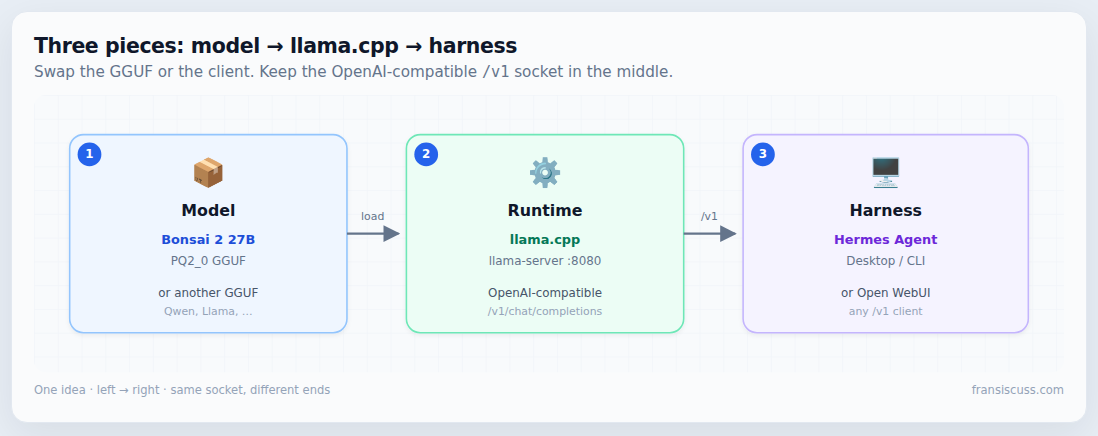
/v1 socket). Click image to zoom.Why the normal llama.cpp install cannot run Bonsai 2 27B
Bonsai 2’s PQ2_0 and PTQ1_0 files require the PrismML llama.cpp fork. The weights sit in a rotated basis and need an activation transform that has not landed in stock llama.cpp. PrismML’s own docs say the same: on a stock build those files are refused, and an older Q2_0 file can load silently and output gibberish.
| Model family or file | Runtime requirement |
|---|---|
Bonsai 2 PQ2_0 |
PrismML fork |
Bonsai 2 PTQ1_0 |
PrismML fork |
Earlier Ternary-Bonsai group-64 Q2_0 |
Recent upstream llama.cpp |
Earlier Bonsai Q1_0 |
Recent upstream llama.cpp |
An unsupported runtime may reject the quantization type. The more dangerous mismatch is one that loads but produces incoherent output. The Bonsai demo documentation warns against using stock llama.cpp for Bonsai 2. Temperature will not repair a missing Walsh–Hadamard transform.
Which Bonsai 2 27B file I chose
The official release provides two compact versions of the same 27B architecture:
| Format | Approximate size | Practical trade-off |
|---|---|---|
PQ2_0 ternary |
7.21 GB | Faster prompt processing and slightly better published evaluation results |
PTQ1_0 dense ternary |
5.95 GB | Lower memory use, useful for smaller GPUs or longer contexts |
I selected Ternary-Bonsai-2-27B-PQ2_0.gguf. A 16 GB RTX 5070 Ti has enough memory for the 7.21 GB weights, a Q8 vision projector, runtime overhead, and a 64K quantized KV cache. Official docs list ~7.25 GB / ~5.93 GB depending on how you count; on disk I used the published GGUF names above.
Prerequisites
Before starting, I checked the following:
- A current NVIDIA driver, confirmed with
nvidia-smi - Git for Windows
- PowerShell
- At least 15 GB of free disk space for the model, projector, runtime, and temporary downloads
- Python 3.11 or 3.12 if using all of the demo’s helper tooling
- A recent 16 GB NVIDIA GPU for the configuration in this article
Check the GPU and driver:
nvidia-smi --query-gpu=name,driver_version,memory.total,memory.free --format=csv,noheaderMy output identified the RTX 5070 Ti and 16,303 MiB of VRAM.
Step 1: Download the model
Download the official PQ2_0 GGUF from https://huggingface.co/prism-ml/Ternary-Bonsai-2-27B-gguf. I stored it at:
D:\AI-Local-Models\Bonsai-demo\models\bonsai2-gguf\27B\Ternary-Bonsai-2-27B-PQ2_0.ggufThe setup script in the next step can download this model automatically. Keeping it under the demo’s expected model directory also makes the supplied diagnostic and launch scripts easier to use.
Step 2: Clone PrismML’s Bonsai demo
The demo repository pins a known-compatible fork build and contains Windows launch scripts:
Set-Location D:\AI-Local-Models
git clone https://github.com/PrismML-Eng/Bonsai-demo.git Bonsai-demo
Set-Location .\Bonsai-demo
Read its AGENTS.md and README.md before replacing defaults. They document the model formats, context-memory calculations, vision options, and runtime-specific flags.
Step 3: Run the Windows setup
Set-ExecutionPolicy -Scope Process -ExecutionPolicy Bypass
.\setup.ps1
At the time of this build, the setup selected PrismML build b10709-9a9394a89 and a CUDA 13.3 package compatible with my driver. The script may select CUDA 12.4 on another machine. That is expected; use the compatible package chosen for the installed driver.
The setup process installs or downloads:
- The PrismML
llama-cliandllama-serverbinaries - The required CUDA runtime DLLs
- The official Bonsai 2 model used by the demo
- The Q8 multimodal projector
- A small Python environment for Hugging Face downloads
The demo downloads the official model into a predictable directory. I still use an explicit launcher so that the selected model, context, slot count, and cache types are visible and versionable rather than implicit.
Step 4: Create an explicit server launcher
I created D:\AI-Local-Models\Start-Bonsai.ps1 with the following content:
$ErrorActionPreference = "Stop"

$demoDir = "D:\AI-Local-Models\Bonsai-demo"
$binDir = "$demoDir\bin\cuda"
$server = "$binDir\llama-server.exe"
$model = "$demoDir\models\bonsai2-gguf\27B\Ternary-Bonsai-2-27B-PQ2_0.gguf"
$mmproj = "$demoDir\models\bonsai2-gguf\27B\Ternary-Bonsai-2-27B-mmproj-Q8_0.gguf"
$webuiConfig = "$demoDir\scripts\webui-config.json"

$env:Path = "$binDir;$env:Path"
Set-Location -LiteralPath $demoDir

& $server `
    -m $model `
    --mmproj $mmproj `
    --alias "bonsai-2-27b" `
    --host "127.0.0.1" `
    --port 8080 `
    -ngl 99 `
    -fa on `
    -c 65536 `
    --parallel 1 `
    --cache-type-k q4_0 `
    --cache-type-v q4_0 `
    --jinja `
    --temp 1.0 `
    --top-p 0.95 `
    --top-k 20 `
    --webui-config-file $webuiConfig
Start the server:
powershell -ExecutionPolicy Bypass -File "D:\AI-Local-Models\Start-Bonsai.ps1"Keep this PowerShell window open. Press Ctrl+C to stop the server. The built-in llama.cpp interface is at http://127.0.0.1:8080. The OpenAI-compatible API base is http://127.0.0.1:8080/v1.
Why each server setting is there
These are not decorative flags:
| Setting | Reason |
|---|---|
-ngl 99 |
Offload every model layer to the GPU |
-fa on |
Enable flash attention |
-c 65536 |
Meet Hermes Agent’s minimum 64K context requirement |
--parallel 1 |
Give one Hermes session the entire 65,536-token context |
| Q4 K/V cache | Make a 64K context fit comfortably in 16 GB VRAM |
--jinja |
Enable native OpenAI-style tool calling |
--mmproj |
Enable image and screenshot input |
127.0.0.1 |
Keep the unauthenticated endpoint local to the machine |
The slot count deserves emphasis. A server started with 65,536 total context and four parallel slots gives each active slot roughly 16K. Hermes sees a nominal 64K server, but the practical per-session window is too small. For a single desktop user, one slot is the correct trade-off. That is the same class of boundary I care about in production AI architecture: advertised capacity is not the same as usable capacity.
The Q4 KV cache slightly reduces cache precision and can be marginally slower than FP16 KV. The benefit is much lower memory use. On a 16 GB card, that is what makes the required 64K window coexist comfortably with the model and vision projector.
Step 5: Verify the server instead of trusting the console
Check health:
Invoke-RestMethod http://127.0.0.1:8080/healthInspect effective properties:
$props = Invoke-RestMethod http://127.0.0.1:8080/props

[pscustomobject]@{
    Model   = $props.model_path
    Alias   = $props.model_alias
    Context = $props.default_generation_settings.n_ctx
    Slots   = $props.total_slots
    Build   = $props.build_info
}
The important values in my working configuration are:
Model    D:\AI-Local-Models\Bonsai-demo\models\bonsai2-gguf\27B\Ternary-Bonsai-2-27B-PQ2_0.gguf
Alias    bonsai-2-27b
Context  65536
Slots    1
Build    b10709-9a9394a89
Send a minimal API test:
$body = @{
    model = "bonsai-2-27b"
    messages = @(
        @{
            role = "user"
            content = "Reply with exactly: API test passed."
        }
    )
    max_tokens = 64
    reasoning_effort = "low"
} | ConvertTo-Json -Depth 6

$response = Invoke-RestMethod `
    -Method Post `
    -Uri "http://127.0.0.1:8080/v1/chat/completions" `
    -ContentType "application/json" `
    -Body $body `
    -TimeoutSec 60

$response.choices[0].message.content
Expected response: API test passed.
Step 6: Verify exactly which model is loaded
A healthy endpoint does not prove that it loaded the intended file. Verify both the live model path and the local file hash as part of the deployment record.
$modelPath = "D:\AI-Local-Models\Bonsai-demo\models\bonsai2-gguf\27B\Ternary-Bonsai-2-27B-PQ2_0.gguf"

Get-FileHash $modelPath -Algorithm SHA256
(Invoke-RestMethod http://127.0.0.1:8080/props).model_path
The path returned by /props should match $modelPath. Store the calculated hash with the runtime build number in deployment notes. That makes later upgrades auditable and helps distinguish a model change from a runtime or configuration change.
Step 7: Connect Hermes Desktop
Hermes works with an OpenAI-compatible /v1/chat/completions endpoint. In Hermes Desktop:
- Open Settings → Providers.
- Add a Custom endpoint / self-hosted provider.
- Set the base URL to
http://127.0.0.1:8080/v1. - Leave the API key blank, or use
localif the form requires a value. - Set the model name to
bonsai-2-27b. - Open Settings → Model and select it as the default model.
- Start a new conversation after saving the provider.
| Field | Value |
|---|---|
| Provider | Custom / self-hosted |
| Base URL | http://127.0.0.1:8080/v1 |
| API key | Empty, or local when required by the UI |
| Model | bonsai-2-27b |
Hermes’s provider documentation recommends at least 64K context for llama.cpp and requires --jinja for tool calling. Both requirements are handled by the launcher above. If you later put MCP tools in front of this local model, the Windows path pitfalls in spawn npx ENOENT on Windows 11 still apply — the model being local does not fix a broken stdio spawn.
The Hermes reasoning-level trap
The server worked for normal prompts but failed when I selected High reasoning in Hermes Desktop. I reproduced the calls directly against the API:
| Reasoning value | Result |
|---|---|
low |
Works |
medium |
Works |
high |
Fails |
xhigh |
Works |
The model’s Jinja template rejects the literal value high:
Unexpected reasoning effort high.
Supported types are xhigh (default), medium, and low.
Hermes’s High preset sends high, while Bonsai expects xhigh for its maximum mode. My practical desktop settings are therefore:
| Use | Setting |
|---|---|
| Everyday chat | Low + Thinking On |
| Coding and analysis | Medium + Thinking On |
| Quick answers | Thinking Off |
| High | Do not use from the current Hermes UI |
Direct API clients can request maximum reasoning with {"reasoning_effort": "xhigh"}. Maximum reasoning is not automatically the best user experience. It can spend many tokens deliberating before producing the answer. Medium is the better default for interactive local work.
Troubleshooting notes
Unknown quantization type or model will not load
Confirm that the binary comes from the PrismML fork rather than stock llama.cpp, Ollama, or another application’s bundled runtime.
The model loads but produces gibberish
Check the runtime before adjusting sampling parameters. Bonsai 2 requires the fork’s activation transform; a runtime mismatch cannot be repaired with temperature or prompt changes.
Hermes reports a context smaller than 64K
Confirm all three values: -c 65536, --parallel 1, Q4 K/V cache enabled. Restart Hermes after restarting the model server so that it refreshes the endpoint metadata.
Hermes High reasoning returns a server error
Use Medium in the UI. Use xhigh, not high, from a direct API client.
CUDA runs out of memory
Try these in order:
- Close browsers, games, image generators, and other GPU-heavy programs.
- Keep the Q4 K/V cache.
- Add
--no-mmproj-offloadto keep the vision projector in system RAM. - Remove
--mmprojentirely when vision is unnecessary. - Use the smaller
PTQ1_0model if more headroom is required.
Do not reduce context below 64K if Hermes is the intended client; it will reject the model during validation.
Other computers cannot connect
That is intentional. The launcher binds to 127.0.0.1. Changing it to 0.0.0.0 exposes an unauthenticated model endpoint to the network. Add authentication and an explicit Windows Firewall rule before considering LAN access.
What this setup demonstrates
The interesting part was not merely fitting a 27B model into 16 GB of VRAM. It was making the complete system honest and usable:
- Selecting the runtime based on the GGUF format rather than the
.ggufextension - Balancing model weights, vision, and KV-cache memory
- Understanding that total context divided across slots is not per-session context
- Preserving OpenAI-compatible tool calls with Jinja templates
- Verifying the live model path and hash after an installer modified the model directory
- Isolating a client/template vocabulary mismatch by testing raw API requests
- Keeping an unauthenticated inference endpoint local instead of casually exposing it to the LAN
Local AI work increasingly looks like systems integration. The model is one component. The runtime, quantization format, GPU memory plan, chat template, API contract, client defaults, and security boundary all have to agree. With those pieces aligned, Bonsai 2 27B is a surprisingly capable local model on a single consumer GPU — and Hermes Desktop provides a useful agent interface without sending inference to a hosted provider.
FAQ
Can I run Bonsai 2 27B in stock llama.cpp or Ollama?
Not the official PQ2_0 / PTQ1_0 files. Those need the PrismML llama.cpp fork. Earlier Ternary-Bonsai group-64 Q2_0 files can run on recent upstream llama.cpp. Do not mix the families.
Why Q4 KV cache instead of FP16?
On a 16 GB RTX 5070 Ti, FP16 KV plus 7.21 GB weights plus a vision projector does not leave a comfortable 64K window. Q4 is the trade that keeps Hermes’s minimum context.
Why one parallel slot?
llama.cpp splits total context across slots. Four slots on a 65,536 server is about 16K per session. Hermes then sees a 64K endpoint that cannot actually hold a 64K conversation.
Why does Hermes High reasoning fail?
The UI sends reasoning_effort: "high". Bonsai’s template accepts low, medium, and xhigh. Use Medium in the UI, or xhigh from a raw API client.
Is this safe to expose on the LAN?
Not as launched. 127.0.0.1 with no API key is a local desktop service. LAN exposure needs auth and a firewall rule first.
